Record Now Instructions
MediaSite Record Now is a way for you to do a self-record that will automatically upload to your
own Mediasite folder. This will save you the step of having to fill out a form and waiting for IT to
move the video to the correct folder. This is available in the Mediasite recording rooms
DUE0093, 0096, 0097, DUE1109, and DUF1091.

There will be an icon on the desktop that looks like the icon above. Once you double click it, you will be promtped to log in with your K-State eID. After you login the Record Now page will open.
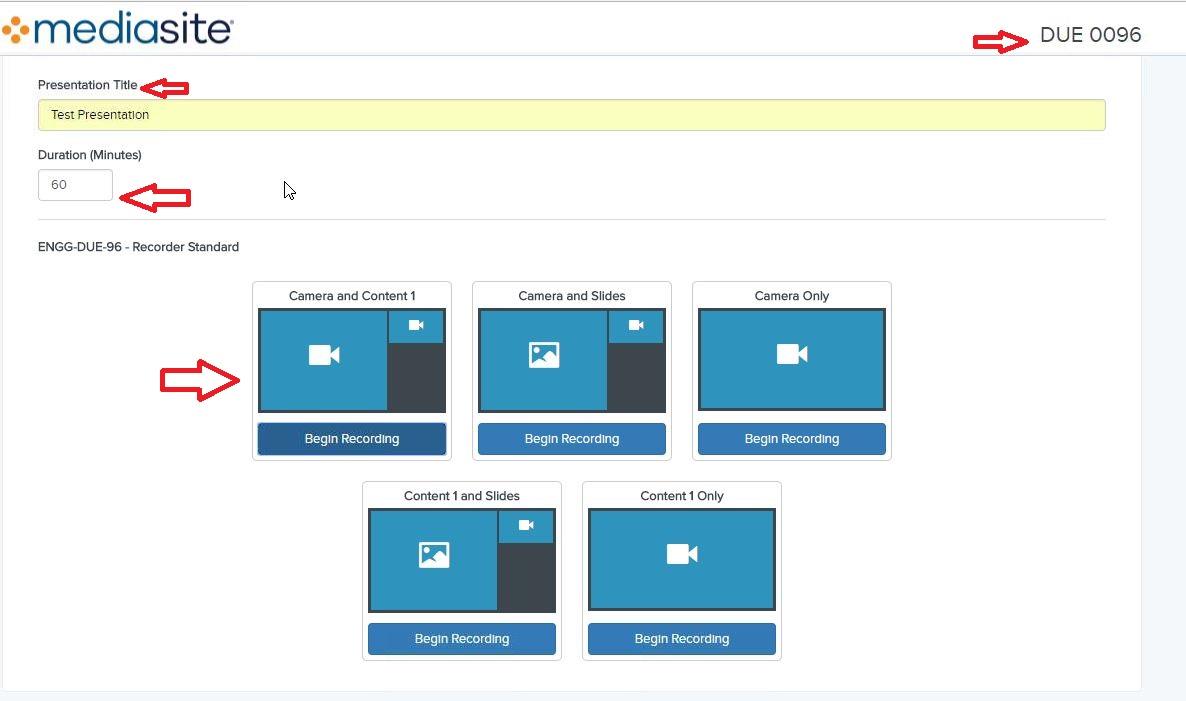
- First thing you want to do is make sure the system has picked up the correct recorder. In
the top right hand corner, it will display what room it is recording. If you are in a room
and it is not displaying correctly please call: 785-532-4643 or email:
support@engg.ksu.edu - Type in the title you would like the recording to be called. This can be edited later.
- Set the estimated duration. You can always end the recording early, but you cannot
extend it. - Choose how you want the recording to be set up. Typically, you would choose Camera
and Content 1. This will show the camera that is selected on the AV Bridge, and the
content that is selected to project on the screen. - Once completed press “Begin Recording” button.
After you start recording this is the screen that will show.

From this screen, you can pause or stop your recording. If you need to pause, you can start
up again from where you left off. If you stop the recording, you would have to start a brand
new second recording.
After you stop the recording, you will see this screen.
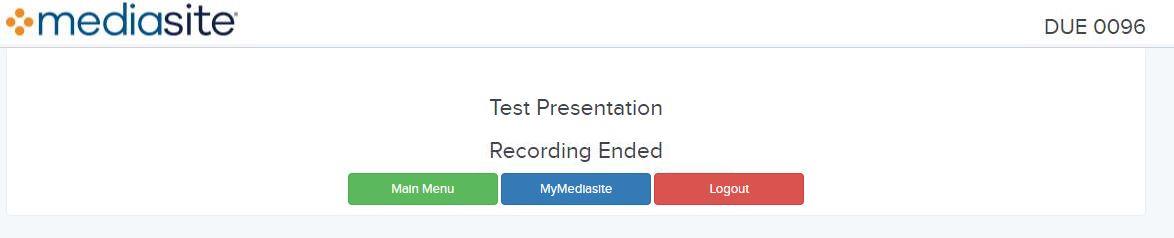
After you end the recording, you can go to the main menu, MyMediasite or logout.
If you click on MyMediasite, you will go to your Mediasite. This is where you can find your
presentation. This will show your video in your drafts folder. From here, you can click on the
video for more options.
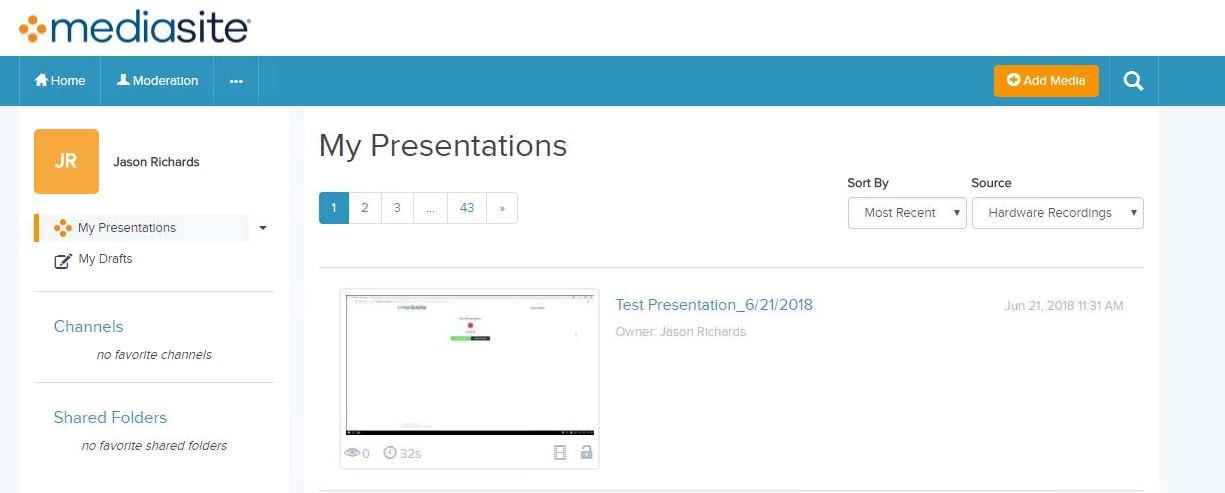

From here, you can copy the video, move the video or edit the video. You might want to
move it into your class folder, so your students can see it. You can visit: https://www.k-state.edu/mediasite/ for Mediasite FAQ’s on how to edit and use MyMediasite.