Architectural Engineering and Construction Science Conference room (2018 Seaton Hall) Instructions
Technical support
Engineering IT
785-532-4643
support@engg.ksu.edu
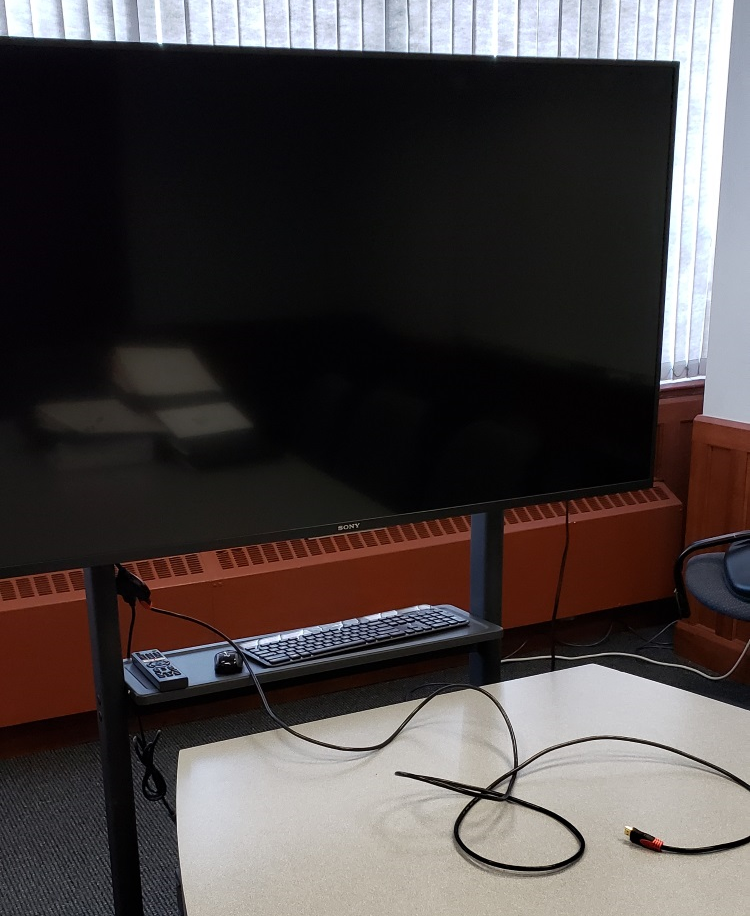 |
Television, wireless keyboard and mouse |
To turn the television on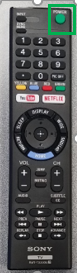
- Locate the television remote control on the television stand and press the Power button.
To turn the television off
- Locate the television remote control on the television stand and press the Power button.
To use the presentation coputer
- After powering on the television, if the computer is not displayed:
- Press the mouse to wake up the computer, make sure the mouse and keyboard are switched on.
- If the computer is awake but not displaying, locate the television remote, located on the television stand and press the Input button until the computer is displayed on the screen.
- Presentation computer has most engineering software pre-installed.
WARNING: Security software on this computer will erase all changes made on the next reboot. This includes any files or data you may have created. These lost files are non-recoverable. To use a network drive for your data, please use the “ENGG Login” shortcut located on the desktop of the computer.
To use the laptop
- Attach the HDMI or VGA cable to your laptop.
- The switcher will automatically switch to the laptop if detects a laptop connected.
- Audio will only work through the presentation computer.