Fiedler Hall Auditorium (DUF1107) Instructions
Download PDF copy of instructions.
Reservation Policy
The auditorium MUST BE RESERVED in advance.
Engineering Research and Graduate Programs
1042 Rathbone Hall
785-532-5846
engg-rooms@k-state.edu
Technical Support
Engineering Computing Services
785-532-4643
support@engg.ksu.edu
Lighting
The lighting panel is located near the podium, by the door to the back room. The buttons numbered 1 through 5 are preset lighting patterns that can probably meet most needs without further adjustments. Moving forward or backward in the numbered sequence makes the room darker or brighter.
- 1: All lights on.

- 2: Same as (1), but whiteboard lights are turned off.
- 3: Same as (2) but front down-lights are turned off.
- 4: Same as (3) but audience area is dimmed.
- 5: Same as (4) but audience area is even darker.
- 6: All off except aisle and wall sconce lights.
To turn projector on
Tap the podium touchscreen to activate the podium systems and projector.


To turn projector off
- Press Exit System on the touchscreen. Confirm exit by pressing Yes on the dialog box that appears. The system will cool down the projector and power down the podium.
- Turn off all lights as you exit.
- Return the keys to the Engineering Research and Graduate Programs office.
To use the presentation computer
- Press Computer on the podium touchscreen, then send to the display you would like.
- A USB port is available on the podium panel to the right of the podium touchscreen.
Warning: Security software on this computer will erase all changes made on the next reboot. This includes any files or data you may have created. These lost files are non-recoverable. To use a network drive for your data, please use the "ENGG Login" shortcut located on the desktop of the computer.
To connect a laptop
- Locate the VGA or HDMI cable in the left-hand drawer of the Fiedler Podium. VGA: Must set laptop to 1080p resolution
- Connect the VGA\HDMI cable to the connector on the podium panel which is to the right of the podium touchscreen and the other end of the cable to your laptop.
- Press VGA or HDMI Laptop on the podium touchscreen, then send to display you would like.
To use the ELMO (document camera)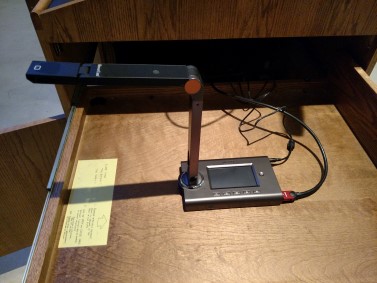
- The ELMO is located on the right side of the podium on a slide-out tray. The slide-out tray must be unlocked prior to use.
- Raise the camera arm to its upright position.
- To turn the ELMO, press the gray power switch on the upper-right hand corner of the ELMO. The document lights (on the two light arms) will activate.
- To display the ELMO, press Document on the podium touchscreen, then send to display.
- To manually adjust the ELMO brightness/darkness setting, use the instructions posted on the tray at the front end of the ELMO.
To use the lapel microphone
- To use the lapel microphone move the switch from the OFF position to the ON position. A green light will indicated that the microphone is functioning.
- Please remember to switch off the lapel microphone when you are finished using it.
- Note:There are wireless handheld microphones available for use located in the Fiedler sound room (DUF1107A), in the cabinet drawer labeled "Mics".
